


.webp)


In modern networking systems, the demand for high-speed, stable, and long-distance data transmission is constantly increasing. Fiber optic cable, with its outstanding performance in low signal loss, high bandwidth, and strong anti-interference ability, has become the preferred choice for connecting switches—especially in scenarios where large amounts of data need to be transmitted between network segments. This guide will walk you through the entire process of connecting switch to switch with fiber optic cable, covering preparation, step-by-step operations, key considerations, and troubleshooting, to help you achieve a reliable and efficient network connection.
Preparations Before Connection: Gather Tools and Confirm Compatibility
Before starting the connection work, adequate preparation is essential to avoid delays or errors during the process. The core of this stage is to ensure that all tools and components are in place and that the equipment meets compatibility requirements—especially for the fiber optic cable and switches involved.
Essential Tools and Components
To complete the switch-to-switch connection with fiber optic cable, you will need the following tools and components:
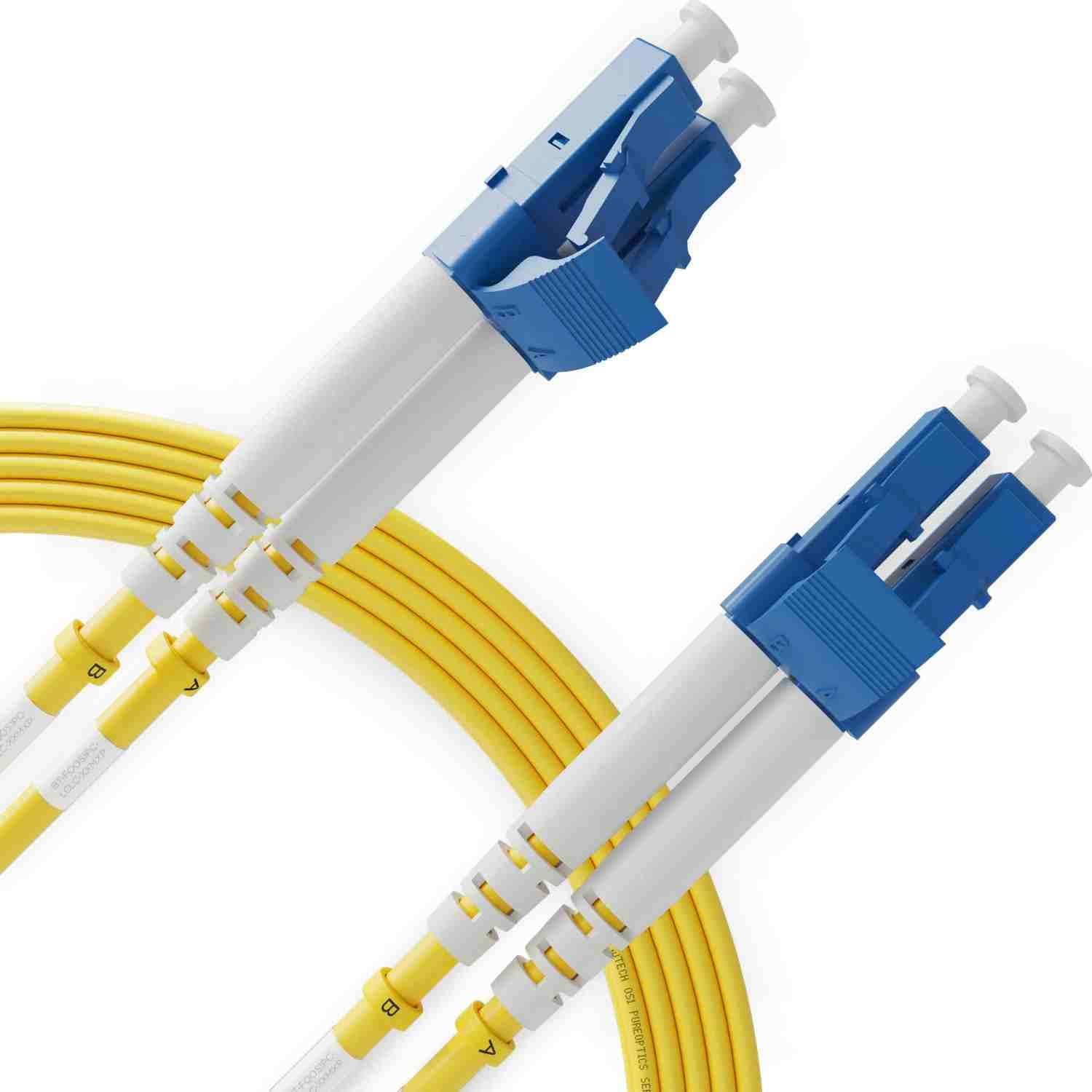
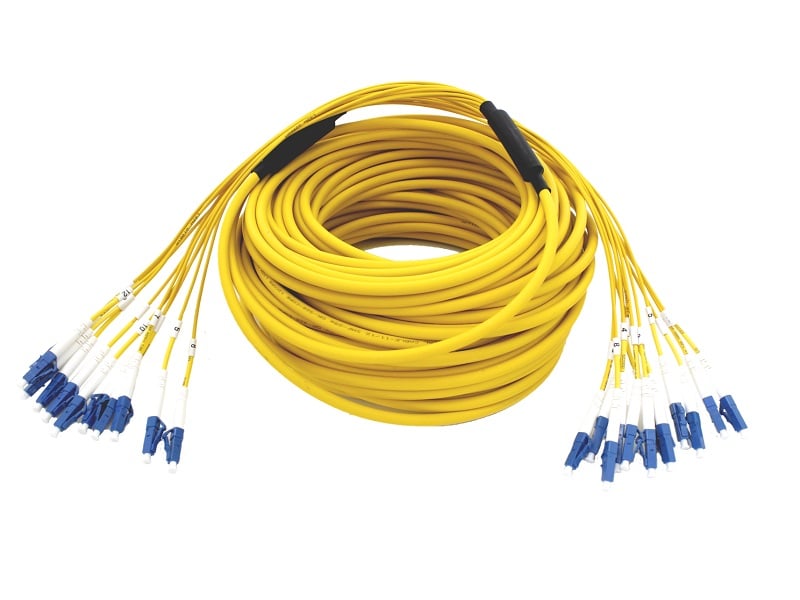
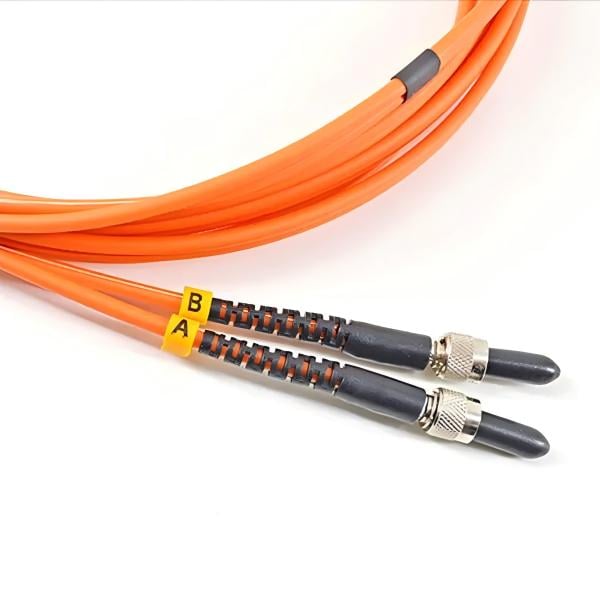
Fiber optic cable: Select the appropriate type based on your network needs. For short-distance connections (such as within a data center), multimode fiber optic cable (e.g., OM3, OM4) is cost-effective and suitable for high-speed transmission like 10G Ethernet. For long-distance connections (such as between buildings or cities), single-mode fiber optic cable is preferred due to its lower signal attenuation over extended distances. Additionally, choose the right connector type for the fiber optic cable—common options include LC, SC, FC, and MTP/MPO. LC connectors are widely used in modern switches for their small size and high density, while SC connectors are popular for their easy plug-and-play design.
Fiber optic transceivers (SFP/SFP+): These are essential for converting electrical signals from the switch into optical signals (and vice versa). Ensure the transceivers match the fiber optic cable type (single-mode or multimode) and the switch’s interface specifications (e.g., SFP for 1Gbps, SFP+ for 10Gbps).
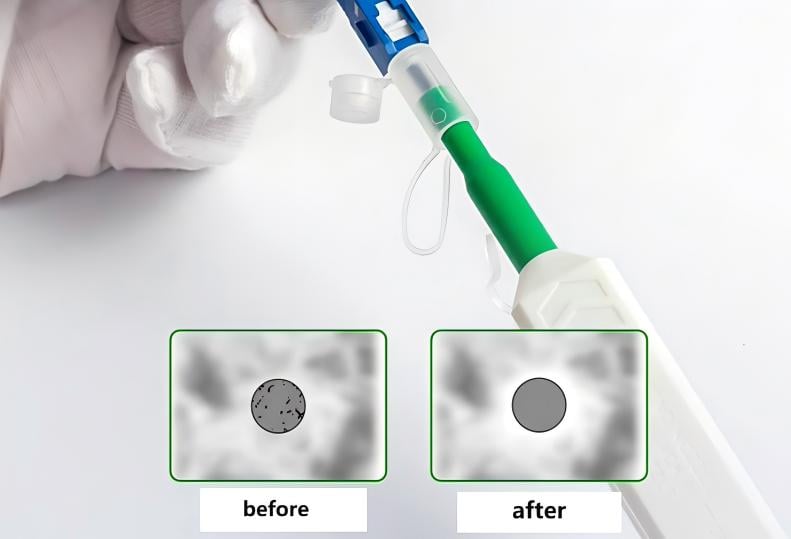
Fiber optic cleaner: A clean fiber end face is critical for minimizing signal loss. Use a specialized fiber optic cleaner (such as a dry cleaning cloth or cleaning pen) to remove dust, oil, or debris from the fiber optic cable connectors and transceiver ports.
Fiber Cable tester: After the connection, a fiber optic cable tester (e.g., an optical power meter or OTDR) will help verify signal strength, attenuation, and whether the connection is stable.
Auxiliary tools: Include a screwdriver (for securing transceivers if needed), cable ties (for organizing fiber optic cables), and a ladder (if switches are installed in high racks).
Confirm Compatibility Between Switches and Fiber Optic Cable
Compatibility issues can lead to failed connections or poor performance, so confirm the following points before proceeding:
Interface matching: Check that both switches have compatible optical ports (e.g., SFP, SFP+, QSFP) that support the fiber optic cable’s connector type. For example, if you use an LC-type fiber optic cable, both switches must have LC-compatible transceiver ports.
Transmission speed and distance: Ensure the switches and fiber optic cable support the same transmission speed (e.g., 1Gbps, 10Gbps, 40Gbps) and distance range. For instance, a 10G OM3 multimode fiber optic cable supports distances up to 300 meters, so the switches must be placed within this range or use a longer-range fiber optic cable (like single-mode) if the distance exceeds 300 meters.
Protocol support: Verify that both switches use compatible network protocols (e.g., Ethernet) to ensure smooth data exchange after the connection.
Step-by-Step Process to Connect Switch to Switch with Fiber Optic Cable
Once preparations are complete, follow these step-by-step instructions to connect the two switches. Each step is designed to ensure safety, accuracy, and minimal signal loss.
Power Off the Switches for Safety
Before handling any hardware, turn off the power supplies of both switches and unplug their power cords. This prevents electrical damage to the switches or transceivers and avoids potential safety hazards (such as short circuits) during the connection process.
Install Fiber Optic Transceivers into Switches
Take the compatible fiber optic transceivers and remove their protective caps from both ends.
Align the transceiver with the optical port on the switch—ensure the orientation is correct (most transceivers have a key or notch to prevent reverse insertion).
Gently insert the transceiver into the port until you hear a “click” sound, indicating it is securely locked. For transceivers with screws, use a screwdriver to tighten the screws lightly (do not over-tighten to avoid damaging the port).
Repeat the above steps to install the same type of transceiver into the second switch.
Clean Fiber Optic Cable Connectors
Even new fiber optic cable connectors may have dust or debris, which can cause signal loss or reflection. Use a fiber optic cleaner to clean the connectors:
Take the fiber optic cable and remove the protective caps from both ends.
For LC or SC connectors, use a dry cleaning cloth to wipe the end face in a gentle, circular motion. For smaller connectors (like MU), use a cleaning pen to insert into the connector and rotate slightly to remove contaminants.
Inspect the end face of the fiber optic cable connector under a light (avoid direct sunlight) to ensure no visible dirt or scratches. If scratches are found, replace the fiber optic cable to prevent signal degradation.
Connect the Fiber Optic Cable to Transceivers
Hold the fiber optic cable connector by its housing (avoid touching the end face) and align it with the transceiver port on the first switch. For LC connectors, align the tab with the slot on the port; for SC connectors, align the square shape with the port opening.
Gently push the connector into the transceiver port until it clicks into place. Ensure the connection is firm—do not pull or twist the fiber optic cable forcefully, as this may damage the connector or transceiver.
Repeat the process to connect the other end of the fiber optic cable to the transceiver port on the second switch.
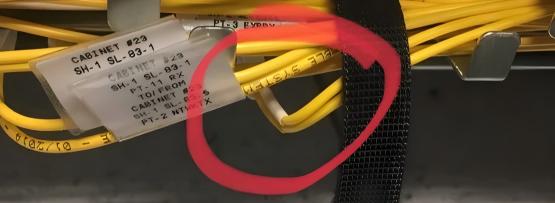
After connecting both ends, use cable ties to organize the fiber optic cable—avoid bending the cable too tightly (the minimum bend radius for most fiber optic cables is 10-15 times the cable diameter) to prevent signal loss or cable damage.
Power On the Switches and Verify the Connection
Plug the power cords back into both switches and turn on the power supplies. Wait for the switches to boot up completely (this may take 1-2 minutes, depending on the switch model).
Check the status lights on the transceiver ports: Most switches have LED indicators that show whether the port is active (green light) or inactive (red light or no light). If both ports show a steady green light, the physical connection is successful.
Use a cable tester to verify signal performance: Connect the tester to both ends of the fiber optic cable and measure parameters such as signal attenuation (should be less than 0.5 dB/km for single-mode fiber optic cable) and return loss (should be greater than 40 dB). If the parameters meet industry standards, the connection is stable.
Perform a data transmission test: Send a large file (e.g., 10GB) between two devices connected to different switches to check if the data is transmitted smoothly without errors or delays.
Key Considerations for Long-Term Stability
To ensure the switch-to-switch connection with fiber optic cable remains stable over the long term, pay attention to the following maintenance and usage guidelines:
Avoid Physical Damage to Fiber Optic Cable
Fiber optic cable is fragile and easily damaged by excessive bending, pulling, or crushing. When routing the cable, avoid placing it near sharp objects, heavy equipment, or areas with high foot traffic. Use cable trays or protective sleeves to shield the fiber optic cable from external impacts. Additionally, do not exceed the cable’s minimum bend radius—for example, a 6mm-diameter fiber optic cable typically has a minimum bend radius of 60mm (10 times the diameter) when installed and 30mm (5 times the diameter) when in use.
Regularly Clean Connectors and Transceivers
Dust and debris can accumulate on fiber optic cable connectors and transceiver ports over time, leading to increased signal loss. Schedule monthly cleaning using a fiber optic cleaner—focus on high-traffic areas (such as data centers with frequent equipment maintenance). Avoid using alcohol or other liquids to clean the connectors, as this may damage the coating on the end face.
Monitor Signal Performance
Use network monitoring tools (e.g., SNMP-based software) to track the performance of the fiber optic cable connection in real time. Monitor parameters such as signal strength, error rate, and latency. If abnormal values are detected (e.g., sudden increase in error rate), inspect the fiber optic cable, connectors, and transceivers immediately to identify and resolve issues (such as loose connections or damaged cables).
Choose High-Quality Fiber Optic Cable and Components
Investing in high-quality fiber optic cable and components (such as transceivers from reputable brands) is critical for long-term stability. Low-quality fiber optic cable may have inconsistent core diameter or poor coating, leading to higher signal loss. Similarly, counterfeit transceivers may overheat or fail prematurely, causing network outages. Purchase products from trusted suppliers (like Fibermart, which offers a range of high-quality fiber optic cable assemblies) to ensure reliability.
Troubleshooting Common Issues
Even with careful preparation, you may encounter issues during or after the connection. Here are solutions to common problems:
No Signal (LED Lights Off)
Check power supply: Ensure both switches are powered on and the transceivers are properly inserted into the ports.
Inspect connectors: Re-clean the fiber optic cable connectors and transceiver ports—dust or oil may be blocking the signal.
Verify compatibility: Confirm that the transceivers and fiber optic cable are compatible with the switches (e.g., single-mode transceivers cannot be used with multimode fiber optic cable).
High Signal Loss (Tester Shows Excessive Attenuation)
Check cable length: If the fiber optic cable is longer than the supported distance (e.g., using OM3 cable for a 400-meter connection), replace it with a longer-range cable (like single-mode).
Inspect for damage: Check the fiber optic cable for bends, kinks, or cuts. If damage is found, replace the affected section or the entire cable.
Reconnect connectors: Loose connections can cause high attenuation—disconnect the fiber optic cable and reconnect it firmly to the transceivers.
Intermittent Connection (Signal Drops Occasionally)
Secure the cable: Ensure the fiber optic cable is not being pulled or moved accidentally (e.g., by equipment vibration). Use cable ties to fix the cable in place.
Check transceiver temperature: Overheating transceivers can cause intermittent signal loss. Ensure the switch has proper ventilation (clean air vents and avoid placing it in enclosed spaces) to prevent overheating.
Replace faulty components: If the issue persists, replace the transceivers or fiber optic cable with new ones to rule out hardware defects.
Connecting switch to switch with fiber optic cable is a reliable solution for high-speed, long-distance network transmission. By following the preparation steps, step-by-step connection process, and long-term maintenance guidelines outlined in this guide, you can achieve a stable and efficient network connection. Remember to choose high-quality fiber optic cable and components, regularly inspect and clean the system, and monitor signal performance to address issues promptly. With the right approach, fiber optic cable will continue to support your network’s growing needs for years to come.
Other related articles from Fibermart:





No comments have been posted yet.