


.webp)


Fiber-to-the-Home (FTTH) networks deliver exceptional speeds (theoretical max 10 Gbps) via light signals transmitted through optical fibers, but they are prone to various issues. Below are the top 10 most common fiber network problems, along with detailed troubleshooting steps and how Internet Service Providers (ISPs) resolve them. First, familiarize yourself with key performance benchmarks to identify anomalies quickly.
FTTH Fiber Optic Network Performance Benchmarks (KPIs)
ISPs use these metrics to assess network health. Home/business users can also monitor them with tools like Speedtest.net, PingPlotter, and optical power meters:
● Download/Upload Speeds: 80-90% of the advertised rate (e.g., 800-900 Mbps for a 1 Gbps plan).
● Latency (Ping): Ideal < 20 ms (critical for gaming/video conferencing).
● Packet Loss: < 1% (higher rates indicate network issues).
● ONT Signal Strength: Optimal range -10 to -25 dBm (measured in dBm).
Top 10 Fiber Network Problems & ISP Fix Solutions
1. Complete Signal Loss (No Internet Connection)
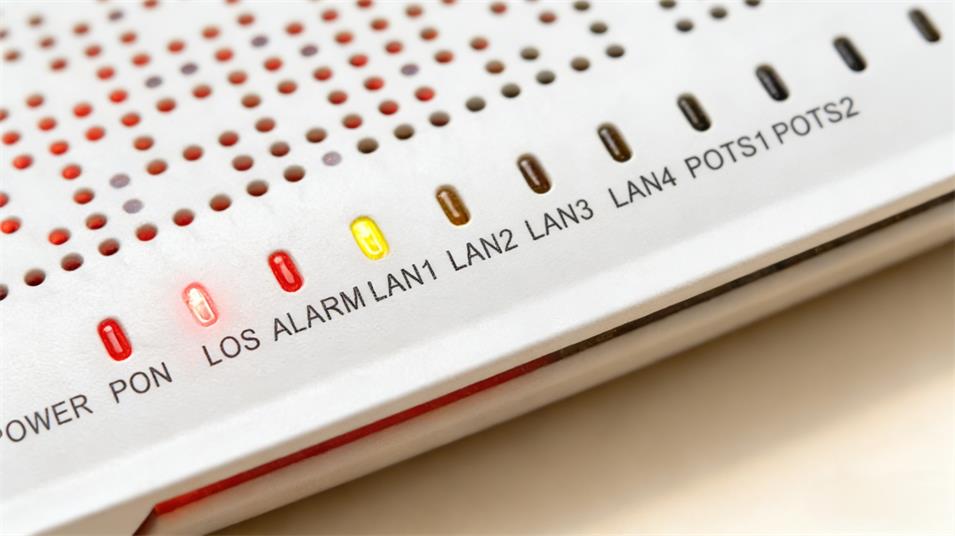
Symptom: LOS (Loss of Signal) light on the Optical Network Terminal (ONT) turns red; no internet access across all devices.
Common Causes
● Physical damage to fiber optic cables (construction, rodents, severe weather).
● Loose connections at the ONT, splice closure, or outdoor termination point.
● ONT failure (rare, often caused by power surges or overheating).
How ISPs Fix It
● First, guide users to check ONT lights (Power: solid green = normal; PON: solid green = connected to ISP; LOS: red = signal loss).
● Dispatch technicians to inspect outdoor fiber cables and splice closures for damage or loose connections.
● Use an Optical Time Domain Reflectometer (OTDR) to locate cable breaks or bends.
● Replace damaged fiber cables or splices; re-seat loose connectors.
● Replace faulty ONT devices if hardware failure is confirmed.
Case Example: A Boston homeowner reported signal loss—technicians found a fiber cable pinched by a door frame, causing intermittent outages. Relocating and re-terminating the cable resolved the issue.
2. Slow Speeds (Below Advertised Gigabit Rates)
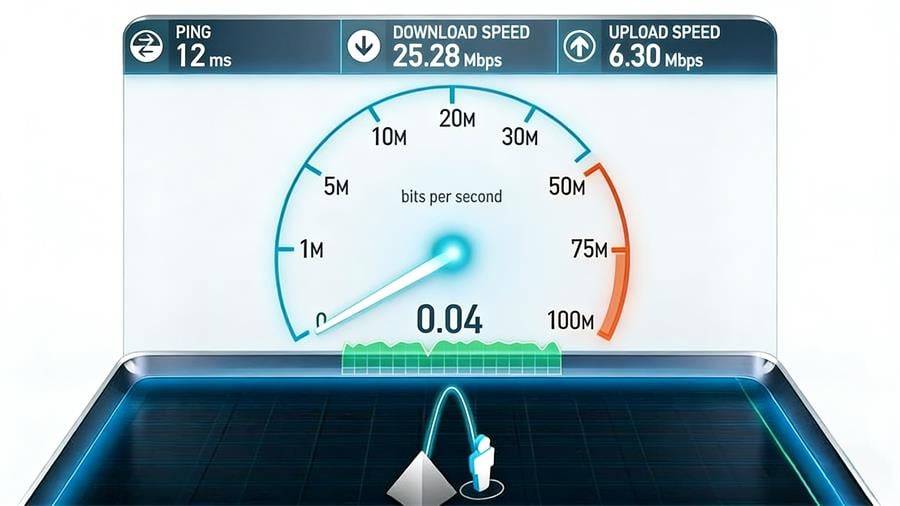
Symptom: Speeds far below the ISP’s advertised plan (e.g., 400 Mbps on a 1 Gbps FTTH connection).
Common Causes
● Outdated user-owned router (lack of multi-gig ports or Wi-Fi 6 support).
● Subpar Ethernet cables (Cat5e instead of Cat6a/Cat7 for long runs).
● Network congestion or ISP infrastructure bottlenecks (rare).
How ISPs Fix It
● Test speeds directly at the ONT (bypassing the user’s router) to isolate the issue.
● If ONT speeds are normal, advise users to upgrade to a Wi-Fi 6/6E router with multi-gig ports.
● Recommend Cat6a/Cat7 Ethernet cables for wired connections over 50 feet.
● Optimize network infrastructure (e.g., upgrade local nodes) if congestion is confirmed.
Case Example: A Munich accounting firm had 400 Mbps speeds on a 1 Gbps plan. ISP technicians tested the ONT (950 Mbps) and recommended a Wi-Fi 6 router—upgrading boosted speeds to 920 Mbps.
3. Intermittent Connectivity & Dropouts
Symptom: Network connects/disconnects randomly, especially during high-usage hours (e.g., evening streaming/gaming).
Common Causes
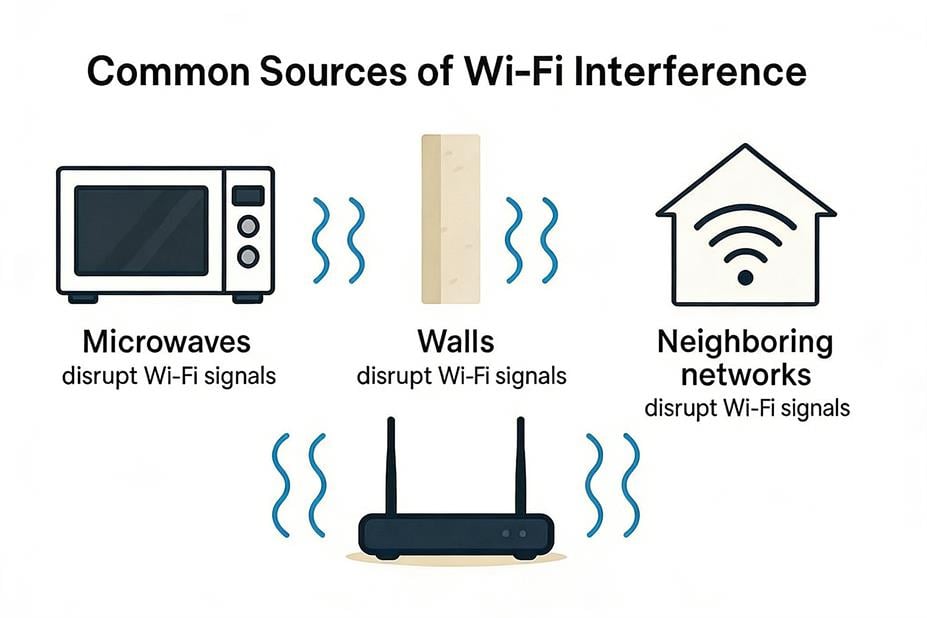
● Overheating ONT/router (poor ventilation in enclosed spaces).
● Electromagnetic Interference (EMI) from appliances (microwaves, refrigerators).
● Deteriorating fiber splices or aging cables.
How ISPs Fix It
● Advise users to relocate overheating devices to ventilated areas (e.g., move ONT from a closed cabinet).
● Dispatch technicians to inspect fiber splices for degradation using an optical power meter.
● Replace faulty splices or aging cables; shield fiber lines from EMI sources.
● Test with a replacement ONT/router if hardware failure is suspected.
Case Example: A Phoenix home had frequent dropouts—technicians found the ONT overheating in an attic. Relocating it to a hallway with a small fan reduced dropouts by 80%.
4. High Latency & Packet Loss
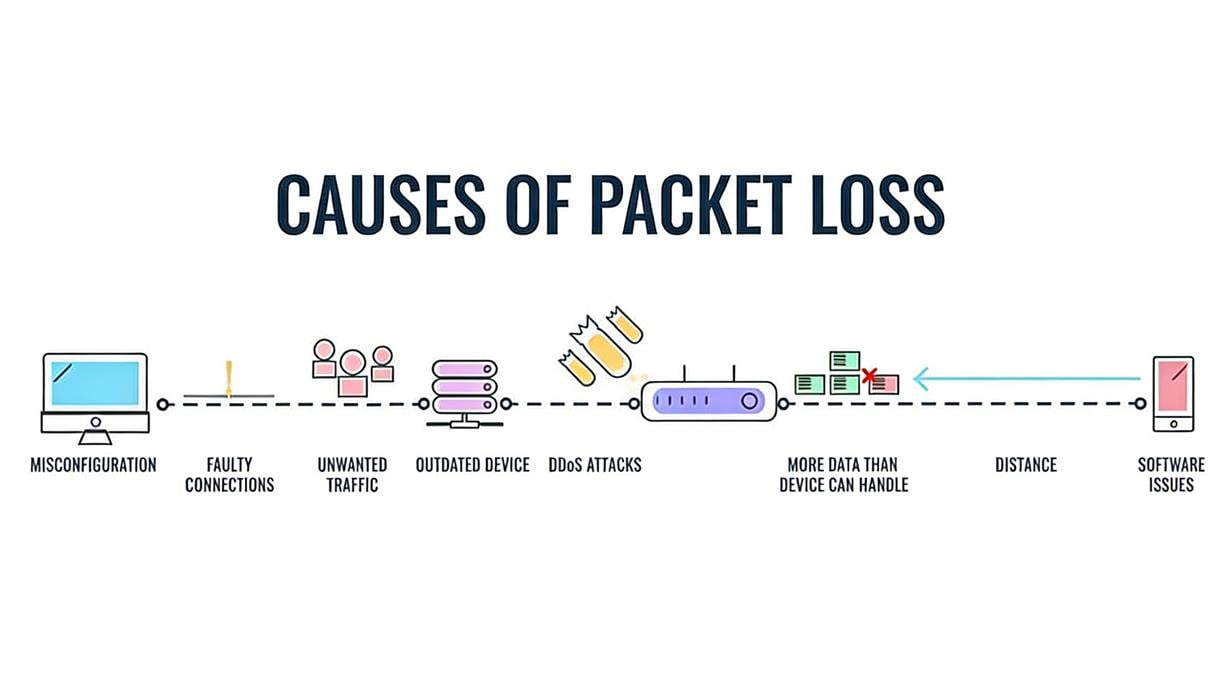
Symptom: Lag during gaming/video conferencing, frozen streams, or slow webpage loading (ping > 20 ms, packet loss > 1%).
Common Causes
● DNS server inefficiencies (user’s ISP DNS is slow/unreliable).
● MTU (Maximum Transmission Unit) mismatch causing packet fragmentation.
● Network congestion or poor QoS (Quality of Service) configuration.
How ISPs Fix It
● Recommend users switch to public DNS servers (Cloudflare 1.1.1.1 or Google 8.8.8.8).
● Optimize MTU settings to 1500 (standard for FTTH) via router configuration.
● Adjust ISP network QoS to prioritize real-time traffic (gaming, video conferencing).
● Resolve regional congestion by upgrading network nodes or rerouting traffic.
Case Example: A Madrid student had 55 ms ping—switching to Cloudflare DNS reduced it to 25 ms, eliminating gaming lag.
5. Poor Wi-Fi Performance (Dead Zones/Weak Signals)
Symptom: Slow Wi-Fi speeds, dead zones, or weak signals in parts of the home/office (wired speeds are normal).
Common Causes
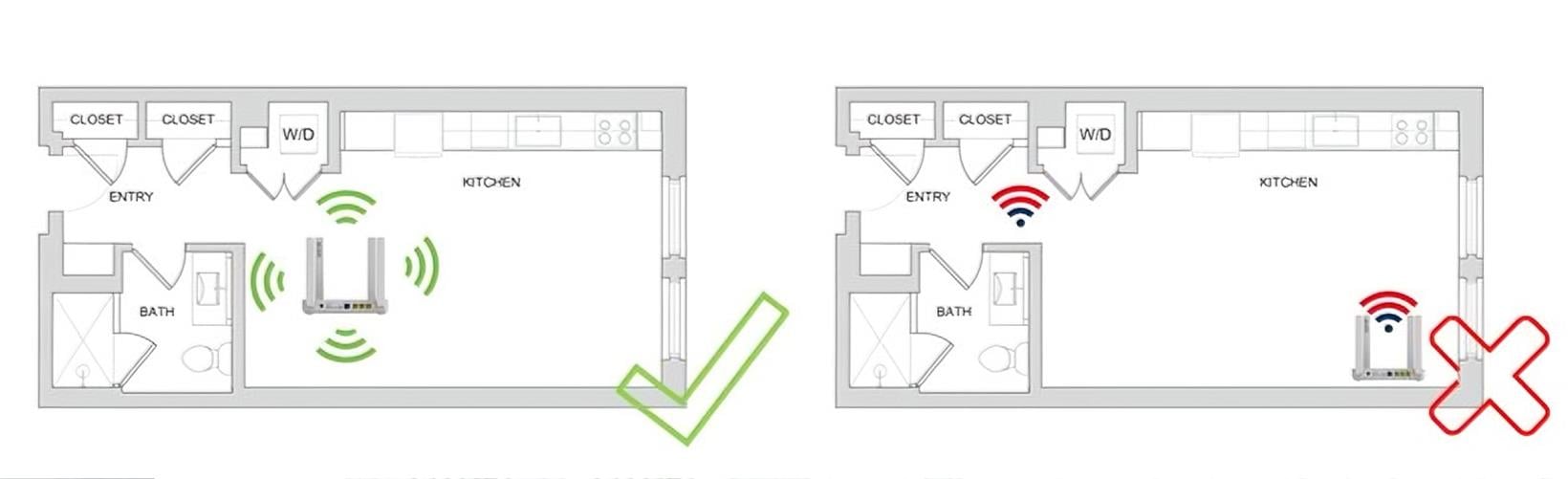
● Poor router placement (basement, corners, or blocked by walls/metal).
● Overcrowded Wi-Fi channels (dense urban environments).
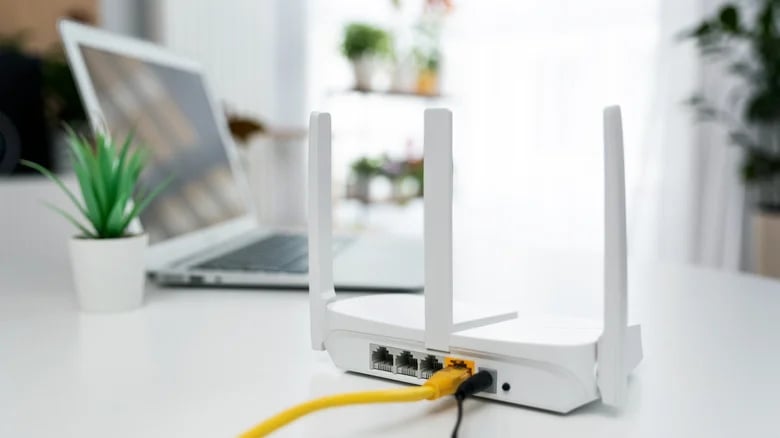
● Outdated Wi-Fi standards (Wi-Fi 4/5 instead of Wi-Fi 6/6E).
How ISPs Fix It
● Advise users to place routers in central, elevated locations (away from walls/metal).
● Recommend Wi-Fi analyzers (e.g., inSSIDer) to switch to less crowded 5GHz channels.
● Offer Wi-Fi 6/6E router upgrades or mesh systems for large spaces/dead zones.
● Deploy Ethernet over power lines (HomePlug) for historic buildings with thick walls.
Case Example: A London townhouse with stone walls had Wi-Fi dead zones—ISP-installed Google Nest Wifi mesh nodes eliminated gaps entirely.
6. Signal Attenuation (Gradual Speed Loss)
Symptom: Speeds decrease over time (e.g., 900 Mbps to 500 Mbps over 6 months) without obvious cause.
Common Causes
● Aging fiber cables (microbends or impurities affecting light transmission).
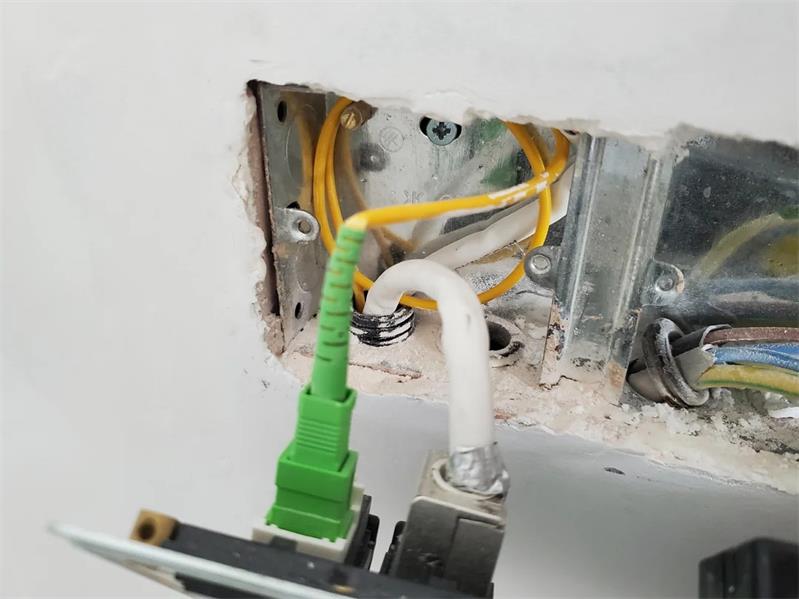
● Dirty/damaged fiber connectors (oxidation or dust buildup).
● Environmental damage (extreme temperatures, moisture in splice closures).
How ISPs Fix It
● Measure signal strength (dBm) at the ONT—readings below -25 dBm indicate attenuation.
● Clean or replace dirty/damaged connectors using fiber cleaning tools and a fiber scope.
● Replace aging or damaged fiber cables; repair water-damaged splice closures.
● Install UV-resistant cables in outdoor areas (critical for regions with extreme heat).
Case Example: A rural Texas home had gradual speed loss—technicians found a deteriorating splice in the outdoor box; replacing the splice restored full 1 Gbps speeds.
7. Bandwidth Congestion (Multi-User Environments)
Symptom: Slow speeds when multiple devices are connected (e.g., 5+ people streaming/gaming simultaneously).
Common Causes
● Unmanaged bandwidth (no prioritization for critical apps).
● Excessive P2P file sharing (torrenting) consuming bandwidth.
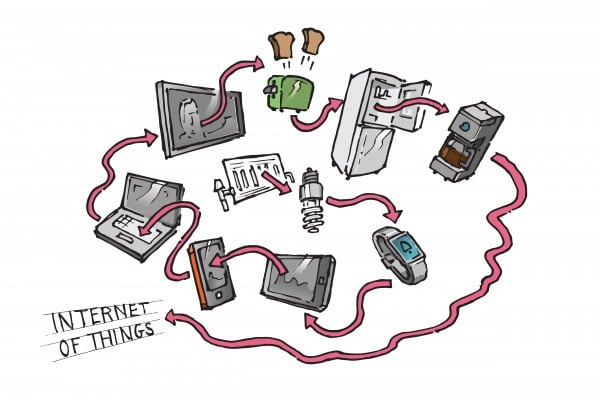
● Too many IoT devices (smart home gadgets) hogging network resources.
How ISPs Fix It
● Configure router QoS to prioritize critical traffic (video conferencing, gaming, VoIP).
● Guide users to throttle P2P traffic via router settings.
● Recommend segregating IoT devices on a separate Wi-Fi network.
● Offer higher-bandwidth plans for high-usage households/offices.
Case Example: A Miami smart home with 50+ IoT devices had slow speeds—ISP helped set up a dual-band router with separate IoT/high-speed networks, restoring 900 Mbps speeds.
8. Legacy Hardware Compatibility Issues
Symptom: Older devices (e.g., 10/100 Mbps laptops) can’t reach gigabit speeds; connectivity issues with legacy equipment.
Common Causes
● 10/100 Mbps network cards (unable to handle gigabit speeds).
● Outdated device drivers or legacy routers (no IPv6/Wi-Fi 6 support).
How ISPs Fix It
● Identify legacy hardware via router admin panels or user device checks.
● Advise users to upgrade network cards to gigabit-capable models.
● Guide users to update device drivers (e.g., via Intel Driver & Support Assistant).
● Enable legacy compatibility modes on routers for older devices (e.g., 802.11b/g for old POS systems).
Case Example: A Minneapolis desktop was limited to 100 Mbps—ISP identified a 10/100 network card; upgrading to a gigabit card restored full speeds.
9. Network Security Breaches (Unauthorized Access)
Symptom: Slow speeds, unknown devices on the network, or data privacy concerns.
Common Causes
● Weak Wi-Fi passwords or default router credentials.
● Outdated router/ONT firmware (security vulnerabilities).
● Malware-infected devices consuming bandwidth.
How ISPs Fix It
● Guide users to set strong, unique Wi-Fi/router admin passwords (16+ characters).
● Push automatic firmware updates for routers/ONTs to patch vulnerabilities.
● Help users monitor connected devices via router admin panels and block unauthorized access.
● Recommend antivirus scans on all devices to remove malware.
● Enable WPA3 encryption for enhanced security.
Case Example: An Atlanta business had slow speeds—ISP detected an unauthorized user; changing the Wi-Fi password and enabling WPA3 resolved the issue.
10. Regional-Specific Fiber Issues
Symptom: Issues unique to geographic regions, tied to climate or infrastructure.
Regional Causes & ISP Solutions
● North America: Overheating ONTs (attics/closed spaces) → ISP recommends ventilated installation or cooling fans; long cable runs → use Cat6a/Cat7 cables + signal boosters.
● Europe: Urban Wi-Fi interference → ISP advises 5GHz channel optimization; thick historic building walls → deploy mesh networks/HomePlug.
● Australia: UV/heat damage to outdoor cables → use UV-resistant cables; remote long runs → install underground conduits + signal repeaters.
ISP Preventative Maintenance & User Best Practices
ISP Proactive Measures
● Quarterly signal testing (optical power meters) to detect attenuation early.
● Annual infrastructure inspections (cables, splices, nodes) to replace aging components.
● Automatic firmware updates for routers/ONTs to fix vulnerabilities.
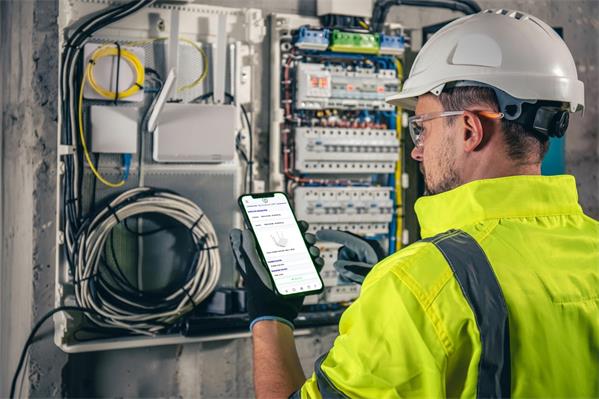
User Best Practices (Recommended by ISPs)
● Monthly: Dust ONT/router vents; run speed tests; check for firmware updates.
● Quarterly: Optimize Wi-Fi channels; inspect outdoor cables for damage.
● Annually: Replace 5+ year-old Ethernet cables; have an ISP technician test signal strength.
Essential Tools ISPs Use for Troubleshooting and FTTH Construction
Troubleshooting
● Optical Power Meter: Measures ONT signal strength (dBm).
● OTDR: Locates cable breaks, bends, or splice degradation.
● Wi-Fi Analyzer: Identifies channel congestion and interference.
● PingPlotter/Wireshark: Tracks latency, packet loss, and network traffic.
Construction
● ONU/ONT: Connects end users to the fiber-optic network, converts optical signals to electrical signals for device use.
●Fiber PLC Splitter: Distributes or combines optical signals, enabling one main fiber to connect multiple ONU/ONT devices.
● Fiber Pigtails: Short fiber segments with connectors, used to connect fiber cables to devices (e.g., ONU/ONT, couplers) for signal transmission.
● Fiber Patch Cable: Links fiber equipment (e.g., splitters, OTDRs) for signal transmission in distribution frames or test environments.
Conclusion
FTTH networks deliver exceptional performance, but the 10 issues above are the most common pain points for users. ISPs resolve these problems through a combination of technical troubleshooting, hardware upgrades, and proactive maintenance. By understanding these issues and following best practices, users can minimize downtime and maximize their fiber network’s potential.
If you’re experiencing persistent fiber network issues, contact your ISP for a professional diagnosis—most problems can be resolved quickly with the right tools and expertise.
FAQs
Q: User reports red LOS light on ONT, no internet. What to guide them to check first?
A: Advise user to check ONT lights: solid green power/PON = normal; red LOS = no signal. Press fiber connector firmly, check for crushed/bent cables. If red, contact us for on-site support (do not disassemble).
Q: 1000M FTTH plan, speed test only ~400M. What to check first?
A: Guide user to test speed directly on ONT (bypass router) to check router/cable issues. Backend check area congestion. If ONT speed ~900M, advise Wi-Fi 6 router + Cat6a+ cable; else, arrange on-site check.
Q: Intermittent network, worse at night. What to focus on?
A: Advise user to place ONT/router in a ventilated area (avoid overheating) and away from appliances (anti-interference). Backend check node stability; arrange on-site inspection of aging parts if needed.
Q: Gaming/video lag, high ping. How to respond quickly?
A: Advise user to reset DNS. Backend adjust QoS for real-time traffic. Recommend wired connection. If lag persists, arrange on-site signal check.
Q: Wi-Fi dead zones/weak signals. What solutions?
A: Advise central/elevated router placement (avoid obstacles). Guide 5GHz channel adjustment via analyzer. Recommend Wi-Fi 6 mesh/powerline adapters for large homes (on-site installation available).
Q: Suspected Wi-Fi theft (slow speed, unknown devices). How to guide?
A: Help block unknown devices via router backend. Advise 16+ character Wi-Fi password + WPA3. Remind firmware update (auto-pushed). Arrange on-site security check if concerned.
More Information for Internet Service Providers (ISPs), Please See:
TOP-10 Broadband Company in United States





No comments have been posted yet.