


.webp)


A detailed guide on installing and testing QSFP cables for high-speed network connectivity. Learn to ensure proper performance, troubleshoot common issues, and optimize your setup.
Scaling up network infrastructure to meet the demands of modern data flow is no small feat. Professionals often encounter unpredictable challenges—link instability, high bit error rates, or even module failures.
Quad Small Form-Factor Pluggable (QSFP) cables have become indispensable for ensuring reliable, high-speed data transfer across devices in data centers, telecommunications, and enterprise networks. Installing and testing QSFP cables correctly is critical to achieving optimal performance, minimizing downtime, and avoiding costly errors.
Here’s a detailed walkthrough of the installation and testing process for QSFP cables. Specialists at Fibermart are here to provide you with the tools and knowledge to maintain seamless network connectivity.
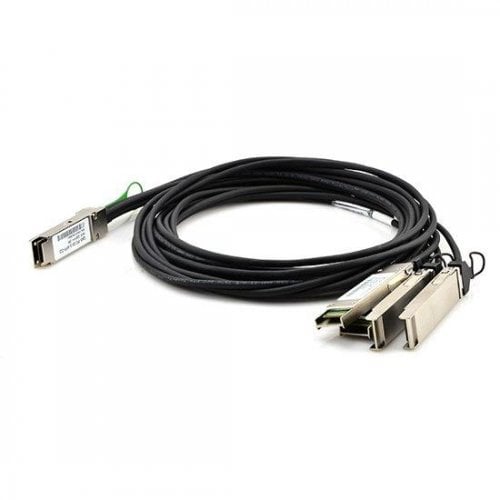
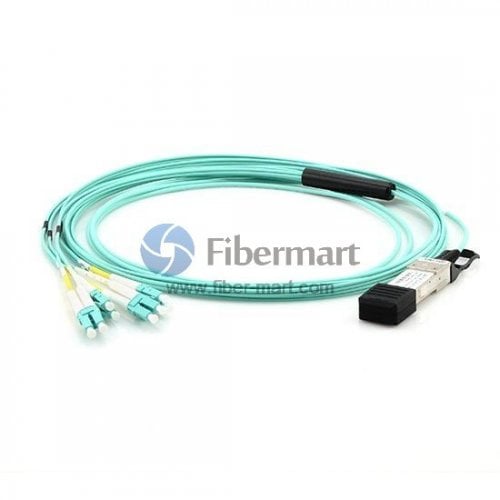
QSFP Cables: A Brief OverviewQSFP cables are high-speed transceivers designed to support data rates ranging from 40Gbps to 400Gbps. Available in both passive and active versions, these cables enable short-range connections (up to a few meters) or long-distance transmissions (up to several kilometers) in networking environments. Common types of QSFP solutions include:
QSFP+: Supports 40Gbps, widely used in legacy networks and intermediate setups. QSFP28: Designed for 100Gbps networks, ideal for data-intensive applications. QSFP-DD: A double-density version supporting up to 400Gbps, suitable for next-generation networks.
|
Step-by-Step QSFP Cable Installation
Preparing for Installation
Before installing QSFP cables, consider the following preparatory steps:
1. Verify Compatibility
Before beginning, ensure the QSFP cable is compatible with your devices and network setup. Confirm:
· The cable matches the port type (e.g., QSFP+, QSFP28, or QSFP-DD).
· The transceiver is compatible with the device's firmware.
· Network speed requirements align with the cable's specifications.
2. Inspect Cables and Modules
Physically inspect the QSFP cables and modules for visible damage, such as bent pins or frayed connectors. Use protective dust caps to prevent contamination of optical connectors during handling.
3. Clean the Connectors
Dirt and debris on connectors can cause significant signal loss. Use fibre cleaning tools such as lint-free wipes and isopropyl alcohol to clean the connectors before installation.
4. Check Environmental Conditions
Maintain proper environmental conditions, including temperature, humidity, and airflow, to ensure the safe operation of QSFP cables and modules. Refer to the manufacturer’s guidelines for specific tolerances.

Installing QSFP Cables
1. Insert QSFP Modules
Carefully insert the QSFP module into the corresponding port on your network switch or router. Ensure that the module clicks into place to secure the connection. Avoid applying excessive force to prevent damage.
2. Connect the Cable
Attach the QSFP cable to the module by aligning the connectors and gently pushing them together until they lock. For AOCs, ensure the connectors are correctly aligned to avoid pin misalignment.
3. Organize Cable Management
Implement proper cable management techniques to prevent tangling, bending, or stretching of cables. Use cable ties, racks, or trays to keep the setup organized and accessible for maintenance.
4. Secure Connections
Verify that all connections are secure by gently tugging on the cables. Loose connections can result in intermittent signal loss or complete failure.
Testing QSFP Cables
After installation, rigorous testing ensures the reliability and performance of QSFP cables. Here are the primary testing methods:
1. Optical Power Testing
Measure the optical power levels at the transmitter and receiver ends using an optical power meter. Ensure the power levels fall within the acceptable range specified by the manufacturer.
2. Bit Error Rate (BER) Testing
Use a BER tester to assess the error performance of the QSFP link. This test verifies the integrity of data transmission and identifies issues like jitter and signal degradation.
3. Connectivity Testing
Run a basic connectivity test to confirm that the QSFP link is functional. Use network diagnostic tools like ping and traceroute to ensure end-to-end connectivity.
4. Eye Pattern Analysis
Perform an eye pattern test using an oscilloscope to visualise the quality of the optical signal. A clean and open eye diagram indicates good signal integrity.
5. Loopback Testing
Employ loopback modules to simulate a complete data transmission loop. This test identifies faults in the transceiver or cable by mimicking real-world data flow.
6. Performance Validation
Run traffic tests using network monitoring tools to assess throughput, latency, and jitter. This step confirms the cable's performance under actual operating conditions.
7. Cable Certification
For large-scale deployments, consider using cable certification tools to validate compliance with industry standards. This ensures long-term reliability and compatibility with existing infrastructure.
Troubleshooting Common QSFP Cable Issues
Even with meticulous installation and testing, issues can arise. Here’s how to tackle common problems:
Issue 1: No Link Detected
Cause: Loose connections or incompatible devices.
Solution: Re-seat the cable and confirm compatibility with the device's firmware.
Issue 2: High Bit Error Rate
Cause: Cable damage or excessive bending.
Solution: Inspect the cable for physical damage and adhere to the recommended bend radius.
Issue 3: Signal Degradation
Cause: Dust contamination or improper cleaning.
Solution: Use an optical cleaning kit to clean connectors thoroughly.
Issue 4: Overheating Transceiver
Cause: Insufficient ventilation or high ambient temperature.
Solution: Ensure adequate airflow and monitor environmental conditions.
Issue 5: Intermittent Connectivity
Cause: Loose connections or poor cable management
Solution: Reconnect cables securely and organise them to prevent movement.
Issue 6: Module Incompatibility
Cause: Mismatched QSFP modules and equipment
Solution: Verify compatibility and replace incompatible components.

Best Practices for Long-Term QSFP Cable Management
Maintaining the performance and longevity of QSFP cables requires a proactive approach to cable management. Follow these best practices to ensure optimal network performance:
Regular Cleaning: Dust and debris can degrade signal quality in QSFP connectors. Clean optical connectors using lint-free swabs and isopropyl alcohol to maintain clear data transmission pathways.
Cable Organization: Use structured trays, ties, or cable organizers to prevent tangling and physical stress on the cables. Proper organization also facilitates easier troubleshooting and upgrades.
Avoid Sharp Bends: Exceeding the manufacturer’s recommended bend radius can damage the internal structure of the cables, leading to signal loss. Keep cables loosely coiled to preserve their integrity.
Periodic Inspections: Regularly check cables for visible damage, such as fraying or worn connectors. Proactive replacement of compromised cables prevents unexpected failures.
Environmental Control: Ensure cables are stored and operated in conditions that meet their specified temperature and humidity ratings to avoid degradation.
Labelling: Clearly label cables to identify their purpose and connection points. This simplifies maintenance and reduces the risk of accidental disconnections.
Why Fibermart is the Partner You Need
Fibermart is a global leader in providing high-performance QSFP cables and modules tailored to diverse networking needs. With rigorous quality assurance, comprehensive product testing, and a dedicated support team, Fiber-Mart.com ensure you achieve seamless network connectivity. Our portfolio includes:
· Customised cable solutions.
· Competitive pricing for bulk purchases.
· 24/7 technical support for all your queries.
Explore our extensive range of products and experience superior customer service designed to meet your unique requirements. Call now - let us help you build a faster, smarter network.





No comments have been posted yet.